Translate models in the admin
This guide shows how to translate app models, such as products or blog posts translated with django-parler or django-modeltranslation, from the Django admin: request translations, apply them, and keep an eye on the whole site.
Apply translations on the change form
Translations arrive as suggestions: nothing is written to your data until you decide. On the object’s change page, each waiting translation is shown below its field:
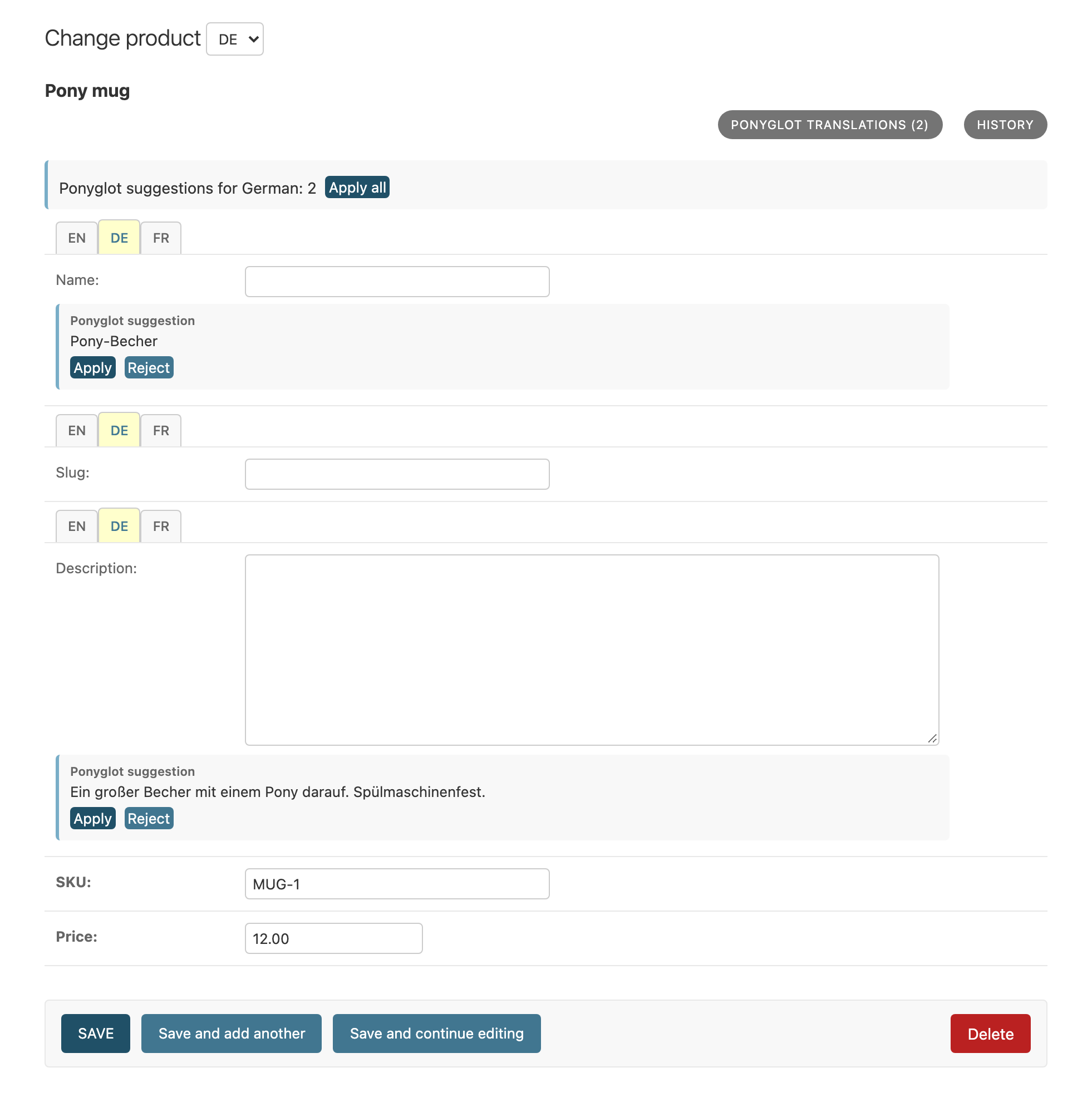
Waiting German translations below their fields.
Apply puts the translation into the field (and a title’s slug into the slug field), Reject marks it. Edit the text if you like. Nothing is stored until you save the form; saving records your decisions, including your corrections.
Translate one object, or all objects of a model
Ponyglot translations on the change page opens the dialog for this object:
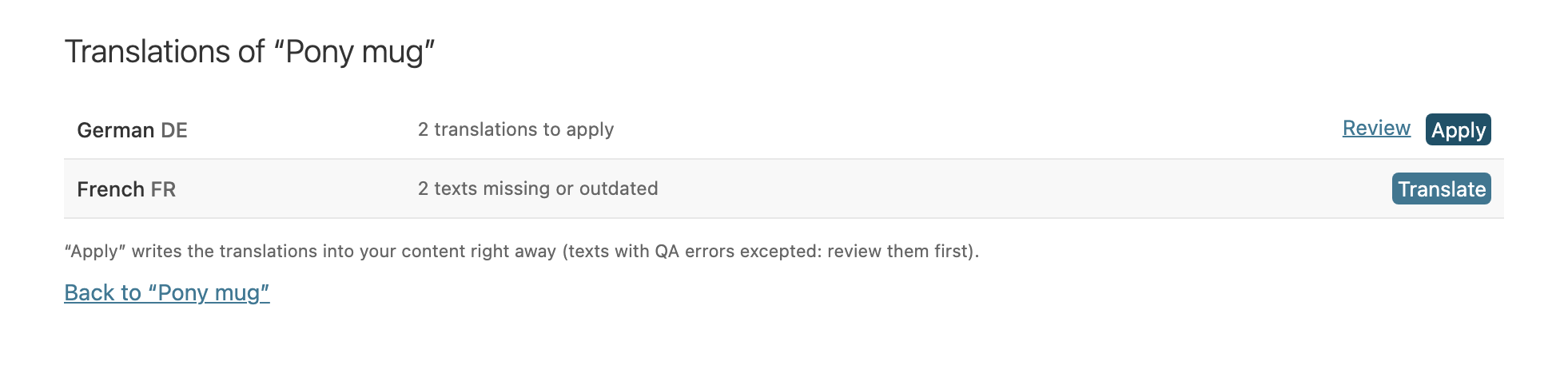
Per language what to do next.
- Translate
Requests the translation of the missing or outdated texts in this language.
- Apply
Writes all waiting translations of this language into the object right away. Texts with QA errors are left out: review them first.
- Review
Opens the waiting translations one by one under Ponyglot › Translation suggestions, with the source, the current translation and a diff.
The same button on the change list opens the dialog for all objects of the model: one Translate all missing for the whole model, and Apply per language.
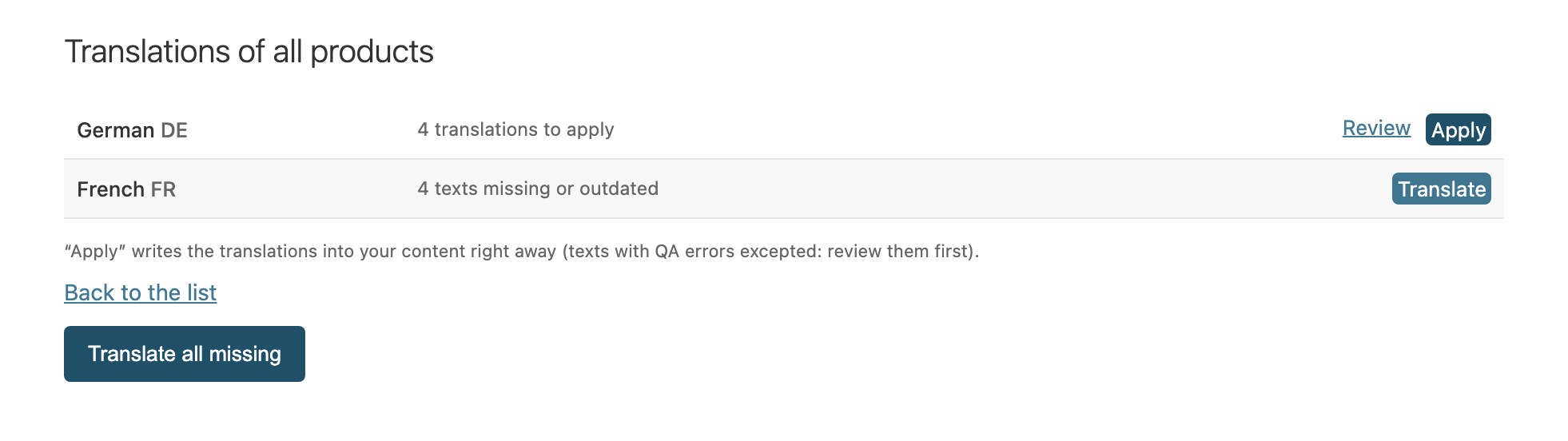
All products at once.
If no sync ran in the last 15 minutes, opening a dialog fetches its translations first, and Fetch translations now is offered.
Use the translation dashboard
Ponyglot › Translation dashboard covers the whole site, top to bottom: per language what is missing or waiting; a link to the documents that need attention (below); every content type with its waiting translations; and, folded away, the recent jobs and syncs.
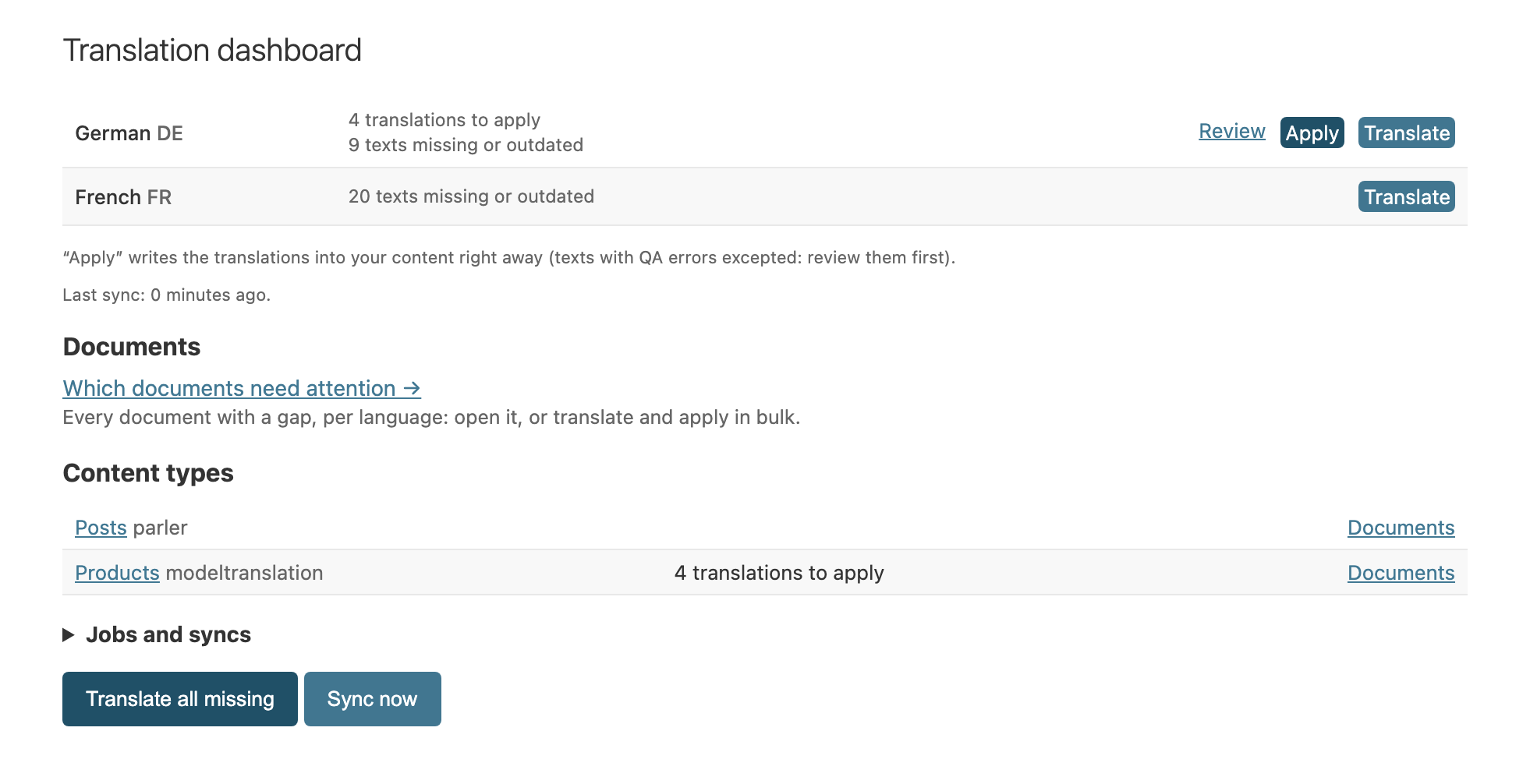
The whole site in one place.
Translate all missing requests everything missing or outdated on the site; Sync now runs a full sync. Because these are site-wide, the dashboard needs its own permission: Can use the translation dashboard. Give it to the people who run translations for the site.
Find the documents that need attention
Translation dashboard › Which documents need attention lists every document with a gap, one column per language:
missing or outdated: not translated yet, or the source changed since;
to apply: translations waiting here; the link opens them in the review;
in a draft (django CMS): written into a draft, done once an editor publishes it;
held by QA: decide them in Ponyglot (the link opens the review queue there).
Pages come first (django CMS, then Wagtail), then the models. Filter by content type or language. The document’s name opens its dialog (django CMS: its status page). To close gaps for several documents at once, select them and choose an action: Translate the selected documents (with a language filter: only that language) or Apply their waiting translations. The page also says when changes are waiting for the next sync or couldn’t be sent. Each content type on the dashboard links to its documents.
Permissions
Action |
Needs |
|---|---|
Open an object’s or model’s dialog, translate |
Change permission on the model |
Apply or reject translations |
Can change translation suggestion |
Translation dashboard |
Can use the translation dashboard |